
How to print to the district printers
The district has made print-usage easier for district staff by simplifying interaction with printers.
Users will no longer see every printer listed on their machine when going to print. Instead, there will be a single District-Wide printer at every location, titled FindMe_SCCSD.
When you print to the FindMe_SCCSD queue, your prints are not sent directly to a printer. Instead, they are stored on our Print Server and staged for Print Release.
Due to this new process, users do NOT need to print to a specific printer based on location. Once you print to the FindMe_SCCSD printer, you will be able to go to ANY printer across the district and retrieve your document simply by 'badging in' at a copier.
To see the printers installed, and verify the FindMe_SCCSD queue is installed, you can open the PaperCut Print-Deploy client and see your available printers.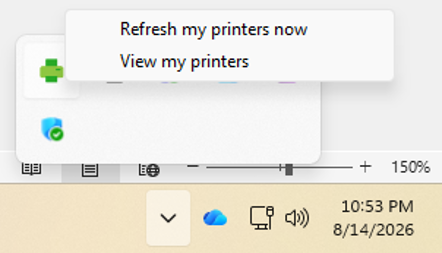
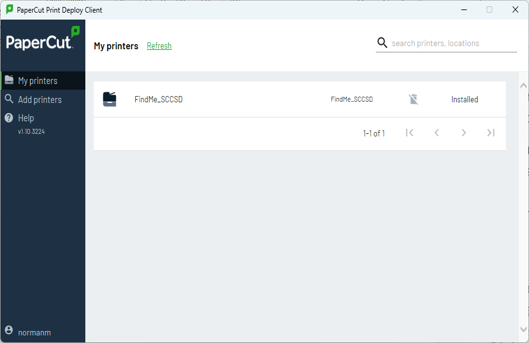
*** If you are missing the PaperCut Software (Green Printer Icon), or the FindMe_SCCSD printer is missing/not available, submit a Freshdesk ticket as detailed earlier and we will assist as soon as possible. You may also refer to the Self-Troubleshooting procedures in this document if you would like to attempt to resolve this yourself. ***