
Accessing your pending print jobs
Once you have scanned your badge, you will see the screen shown below. 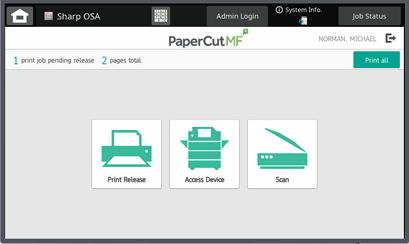
** If you are on any screen other than the PaperCut Welcome Screen, there will be a small House Icon in the Top-Left, under the large House Icon. This will bring you back to the PaperCut Welcome Screen. **
** At any screen in PaperCut, you will be able to logout by clicking the  icon on the Top-Right. If you do not log out, this will happen automatically after 60 seconds. **
If you have print jobs pending, you will see a bar on the top that lists the number of print jobs pending release, and the total number of pages.
- You can select Print All, and your print jobs will begin printing immediately. This will also remove the prints from the queue.
To see your jobs pending release, select the Print Release icon.
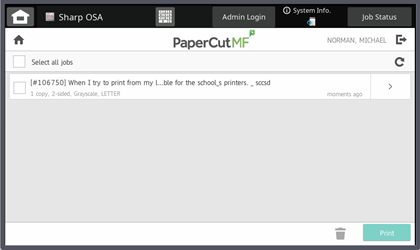
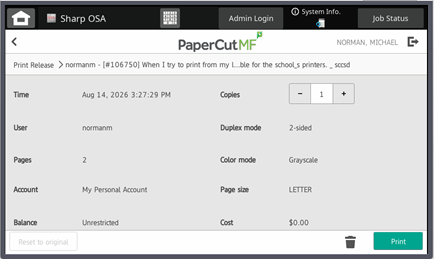
This will list all jobs that are pending release, and provide the Document Name, Settings, and the ability to print it, or delete if it is incorrect.
- o modify the number of copies, click the > on the right of the document, and there will be a field to modify the number of copies.
- If you need to change the document settings, it must be done on the computer when you are sending the printer. By default, all printers are set to Black and White, Single-Sided. You can change the print settings the same way you have done previously.
After sending a print job to the FindMe_SCCSD queue, it will maintain the job for 8 hours.
- If the job has not been printed after 4 hours, you will receive a reminder email.
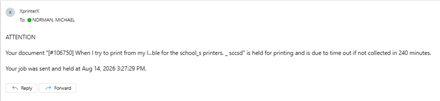
- After another 4 hours, the job will be automatically deleted. You will receive a second email informing you of this deletion.