
Self-Troubleshooting for the PaperCut Print Queue/Application
There are two known issues for the PaperCut Application and the Printer Queue. The fixes have been published and made automatic but may not be applied due to various reasons.
If you attempt to open the Print-Deploy client and the Green Printer icon is not present: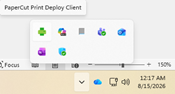
- Click the Windows Search button and search for Software Center.
- In Software Center, there should be an icon for the PaperCut Print-Deploy Client.
- Select this, and press Install.
a. If this icon is not in software center, contact IT Infrastructure via Freshdesk. This indicates an issue with Software Center and we can assist to resolve promptly.
If you open the Print-Deploy client, and encounter the following symptom:
FindMe_SCCSD says installed, however when clicking Refresh at the top, FindMe_SCCSD says Installing. (This will be repeated indefinitely)
- Click the Windows Search button and search for Software Center.
- In Software Center, there should be an icon for the Fix PaperCut FindMe – Fix FindMe Printer.
- Select This, and press install. When finished, it should change to Reinstall.
a. If this icon is not in software center, contact IT Infrastructure via Freshdesk. This indicates an issue with Software Centeronitoring, and we can assist to resolve promptly.
- Go back to the PaperCut Print-Deploy Client and click Refresh. It should reinstall one more time and will no longer reinstall when clicking refresh.
If you encounter any other issues, contact IT Infrastructure via Freshdesk and we will assist. This is a new process, and any issues you encounter may affect other users as well. Thank you for your patience with the new process!