Printing to the FindMe_SCCSD using Web Print.
If you are using a Non-District device, but you have District Credentials, your printing process is slightly different. This is due to you having an account, but not the PrintDeploy client that installs the FindMe_SCCSD Print Queue.
This will be used primarily for AEA and SRO's, as they have their own devices. This can also be used by PARA's, who don't have devices.
Navigate to http://PaperCutMF:9191 on a web browser. You will see the following screen:
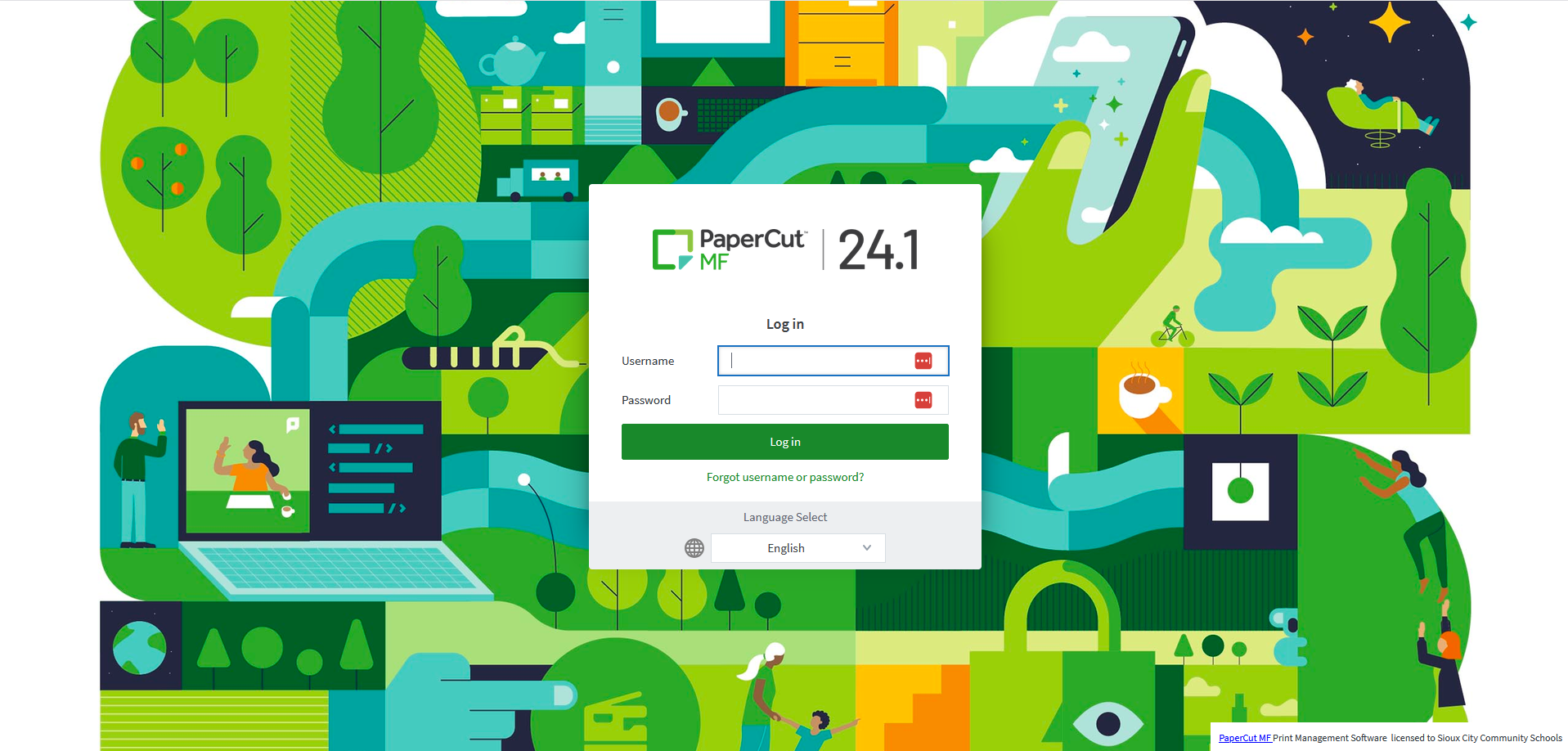
Once you are here, log in with your District Credentials, then select "Web Print" in the left column. 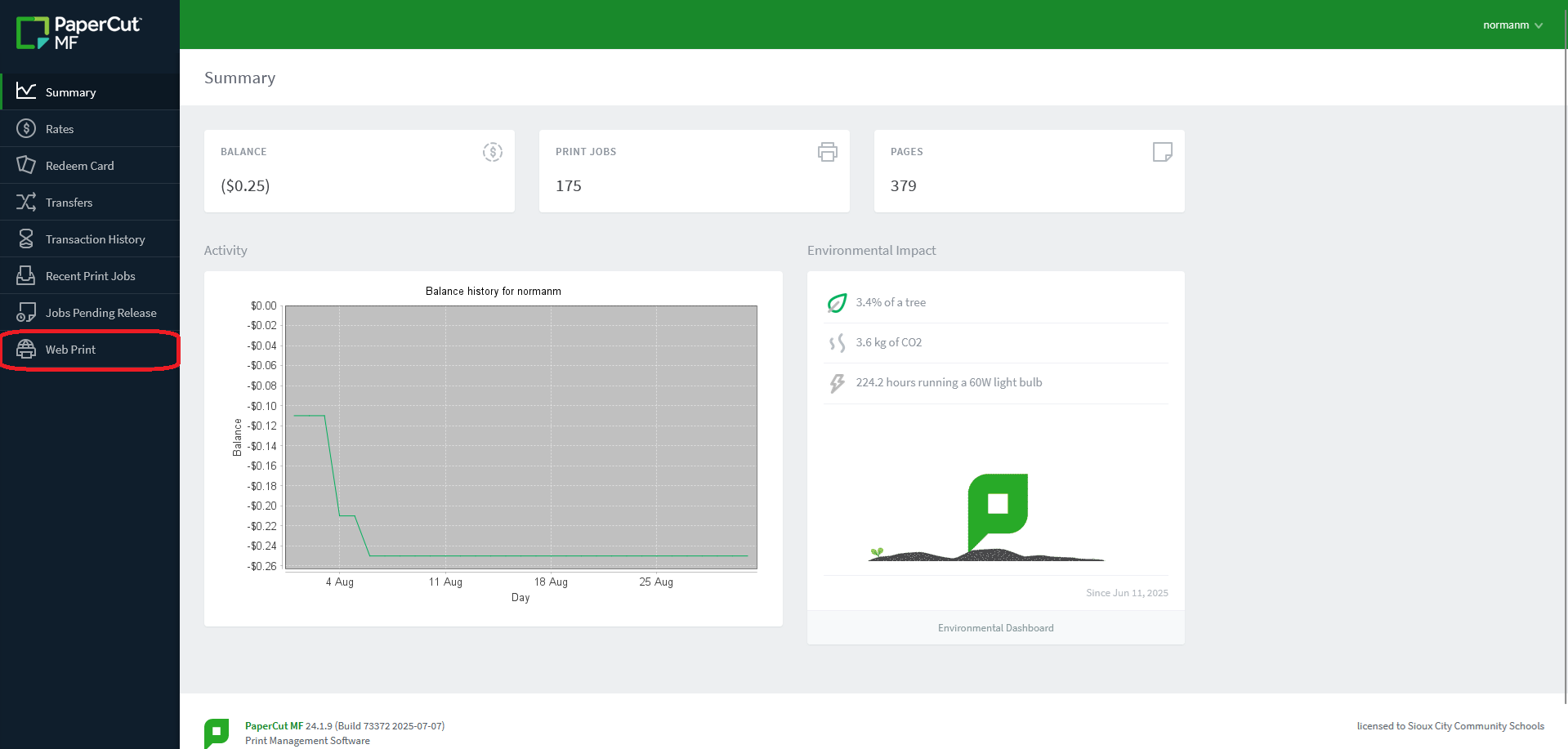
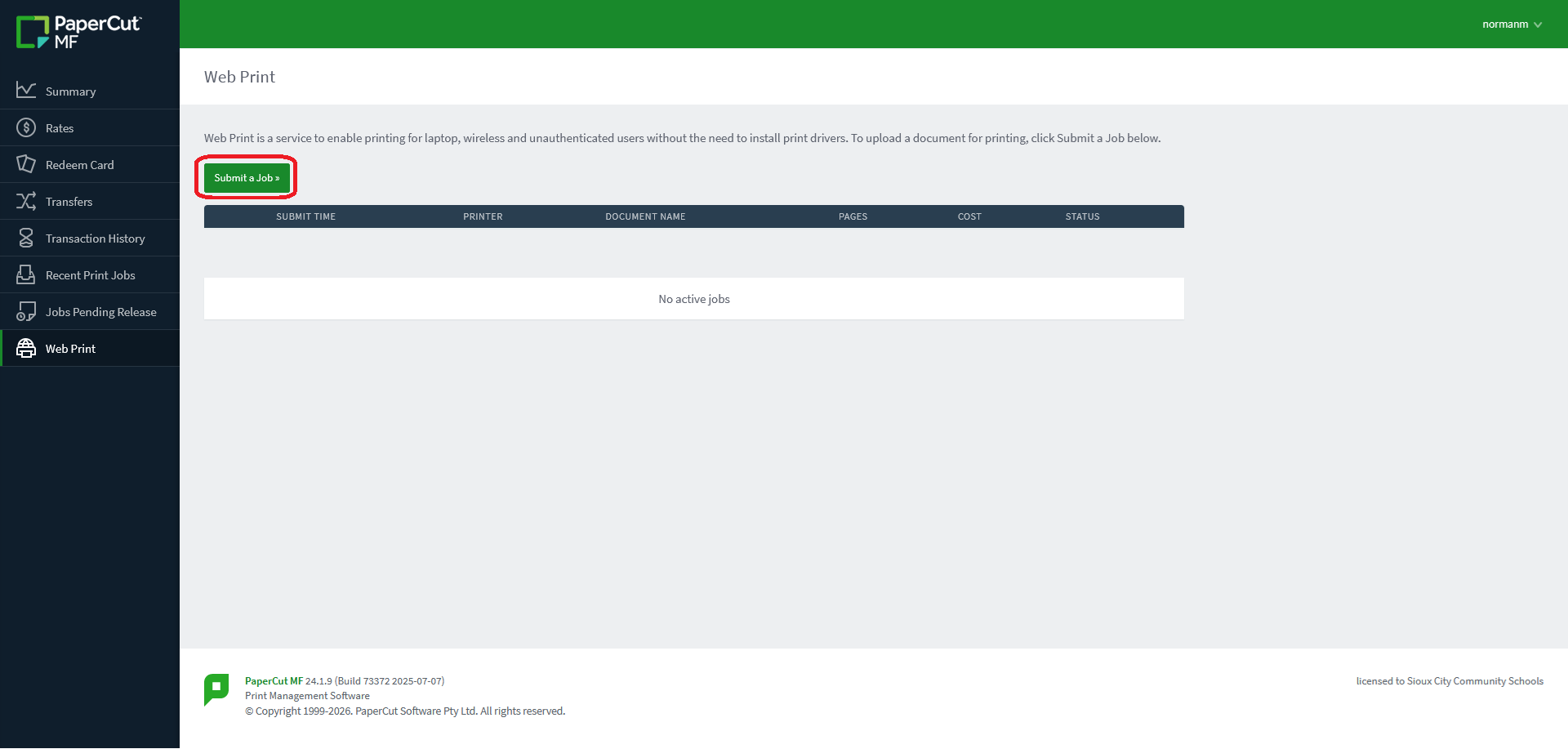
This will bring you to the Job Selection screen. Select "Submit a Job".
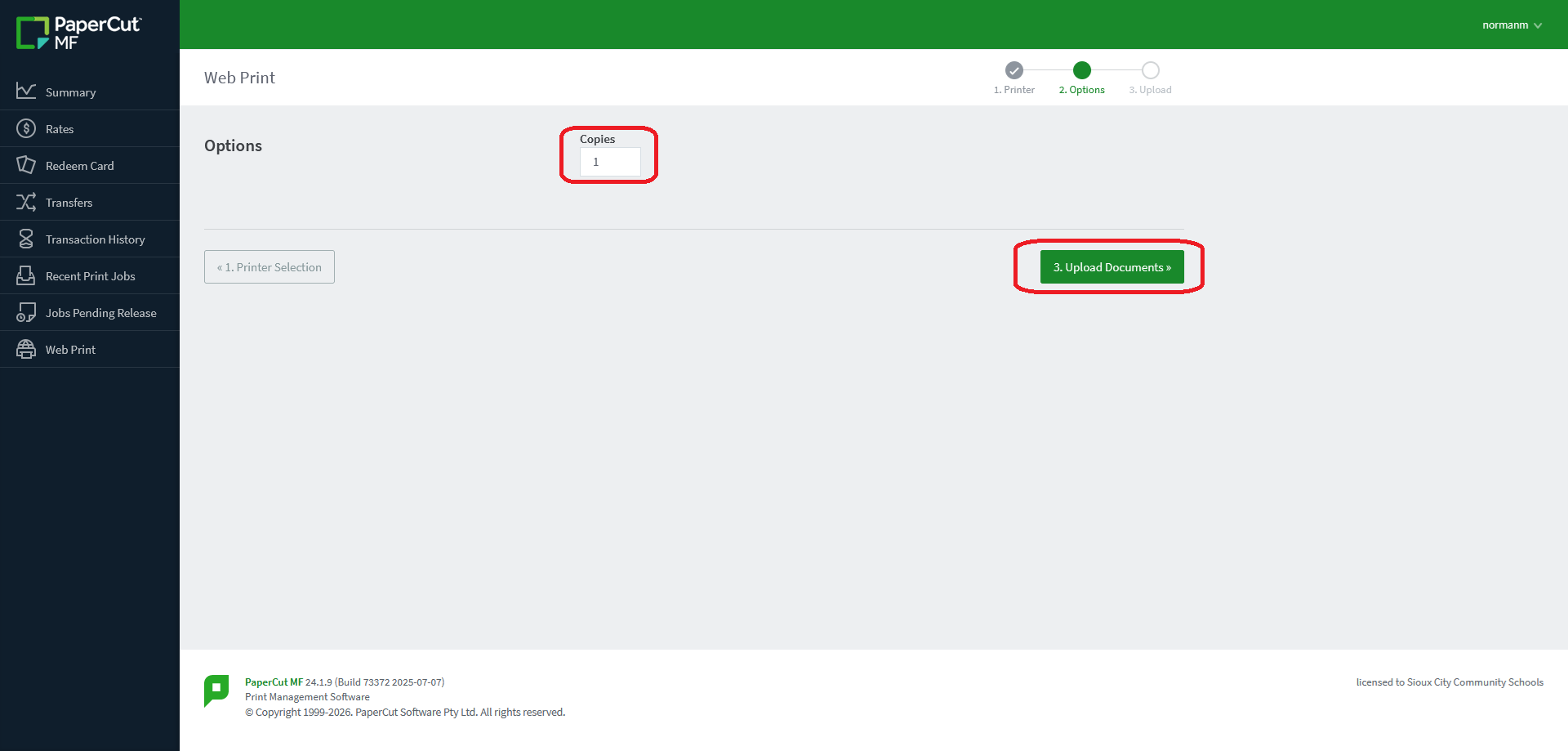
This brings you to the options screen. Input your desired number of copies, then select
"Upload Documents".
Drag your saved file into the Upload Box, or click "Upload from computer" and navigate to your file.You can upload multiple files at once if needed.
To avoid issues with uploading files, it is recommended to save as PDF. You are not able to directly upload Excel, Word, Etc. You must save as PDF, and upload the PDF.
Press Upload & Complete, and you will be navigated to the confirmation screen. 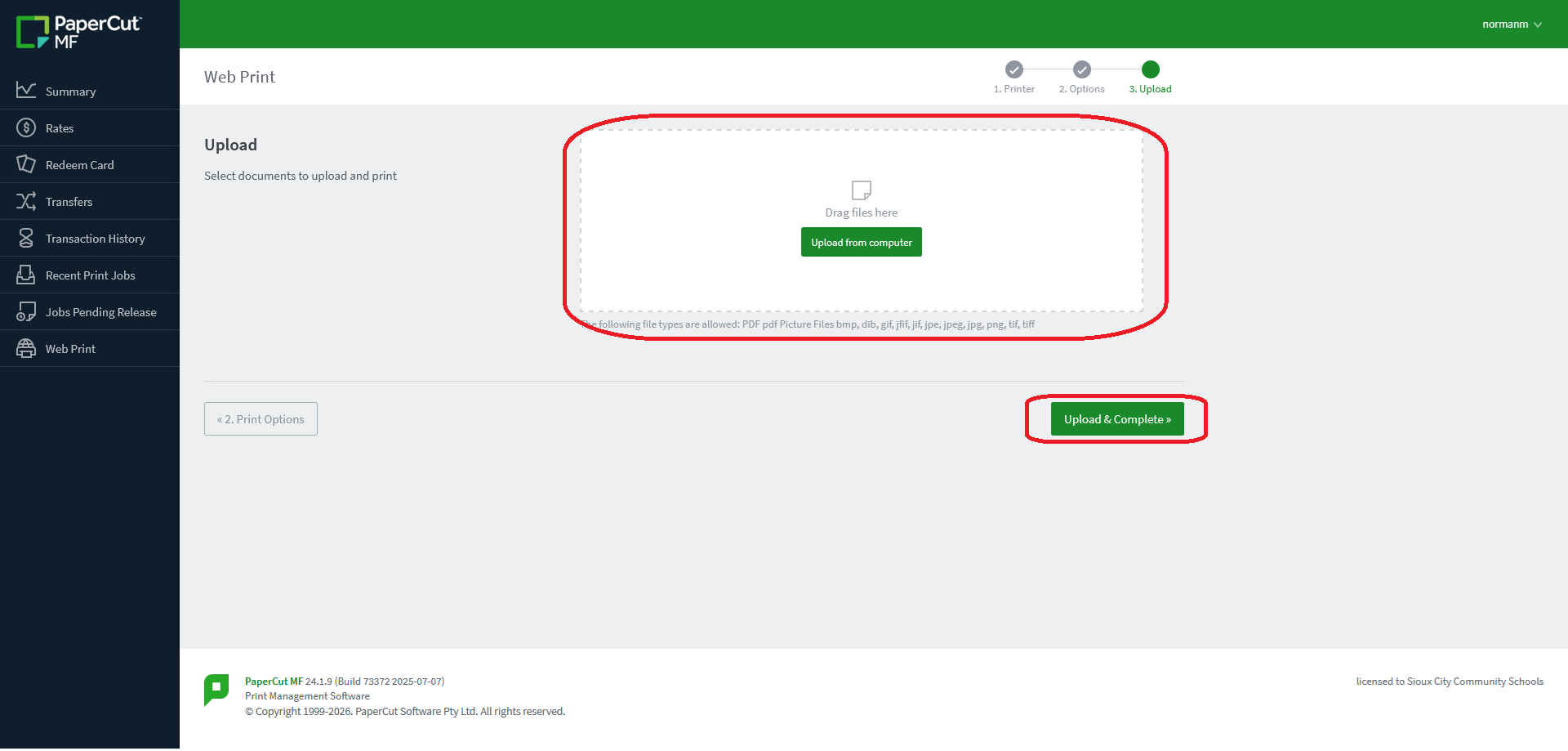
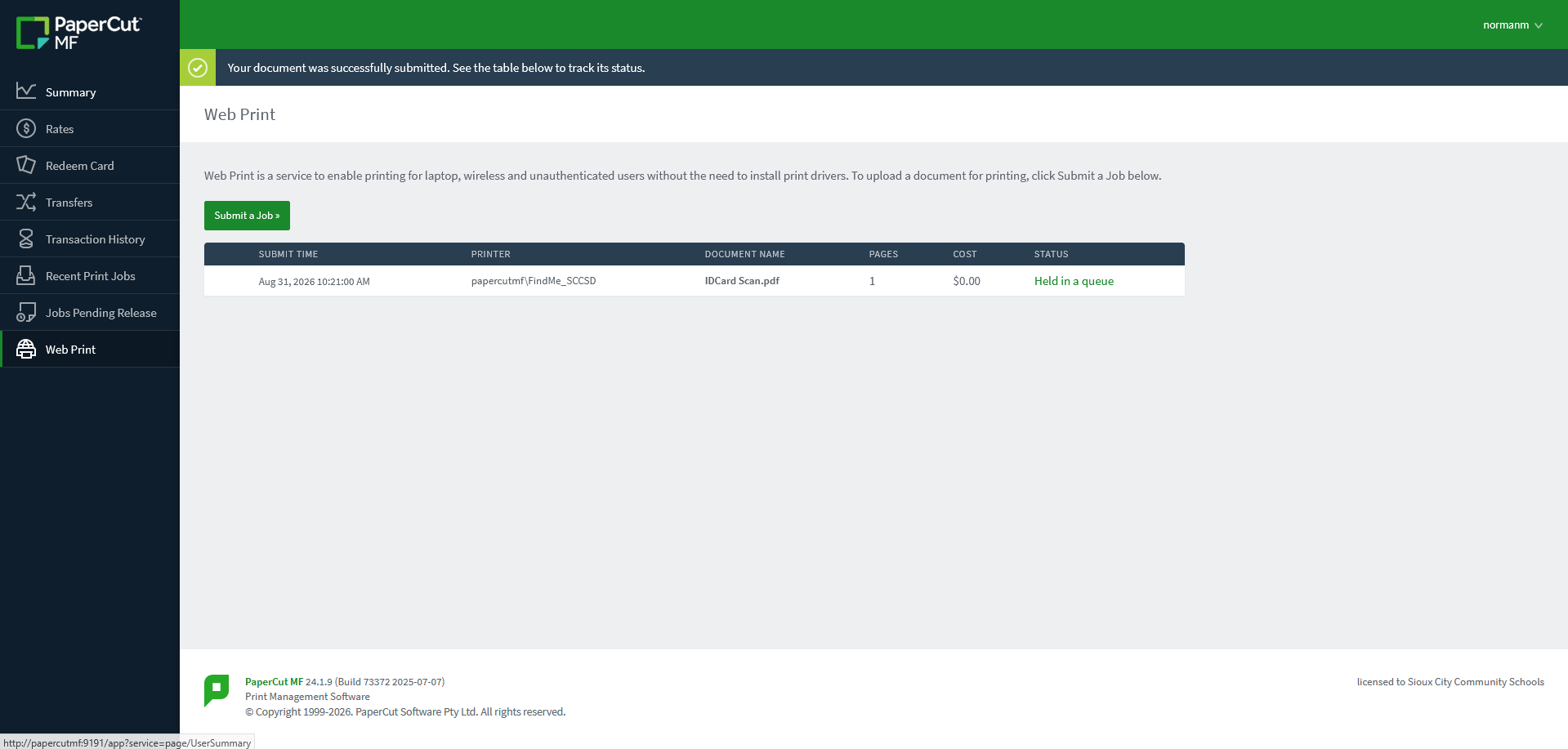
Your job should state "Held in a queue". You may now go to a printer and release your job.