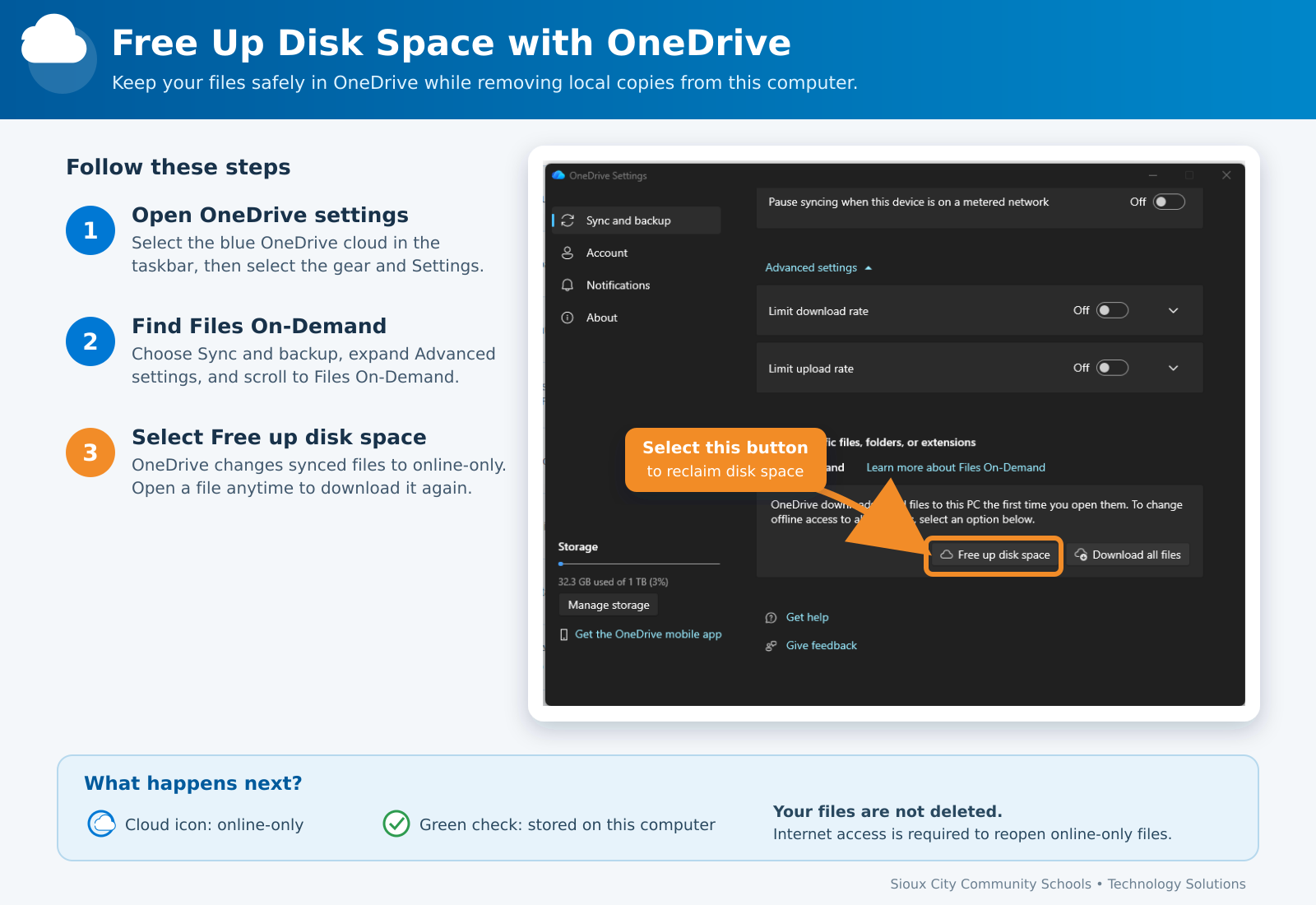
If your computer is running low on storage, OneDrive can remove local copies of files that are already safely synced to the cloud. Your files remain visible in File Explorer and will download again when you open them.
Instructions
Select the blue OneDrive cloud icon in the notification area near the clock.
Select the gear icon, then select Settings.
Select Sync and backup.
Expand Advanced settings and scroll to Files On-Demand.
Select Free up disk space.
OneDrive will change synced files to online-only. This may take a few minutes if you have many files.
Important: Your files are not deleted. An internet connection is required the next time you open an online-only file. Files marked Always keep on this device may remain downloaded.
OneDrive file status icons
Blue cloud: The file is online-only and is not using local disk space.
Green check: The file has been downloaded and is using local disk space.
Solid green circle with white check: The file is set to always remain on this device.
If the OneDrive cloud icon is missing or OneDrive reports a sync problem, contact the Technology Help Desk before using this option.